
.jpg)
You've tagged hundreds of products in your Shopify store. You've organized everything beautifully behind the scenes. But when customers visit your collection pages, they can't filter by those tags—and your conversion rate suffers for it.
This guide walks you through four proven methods to make your Shopify tags work as customer-facing filters. You'll also find the troubleshooting section that most guides skip—the one that explains why your tags aren't appearing as filters and how to fix it.
Whether you're running a small boutique or managing thousands of SKUs, you'll leave with a clear path forward to smart product filtering. We cover everything from smart collections to finetuning 3rd party apps. Let's turn those hidden tags into powerful navigation tools—from predictive search to full collection filtering, my friend!
How Tags Work in Shopify's Product Organization
When you add tags to products in Shopify's admin, those tags become part of the product's data structure. Each product can have up to 250 tags (Plus stores may have higher limits), giving you substantial flexibility for categorization.
Tags work independently across products, meaning they don't need pre-defined categories or hierarchies—though how you structure them has a big impact on how well your Shopify collection page converts. This flexibility is both their strength and their limitation.
The Gap Between Tags and Customer-Facing Filters
Tagging products doesn't automatically create filter options for customers. You might have perfectly organized products with detailed tags, but customers see no way to filter by those tags on your collection pages.
This gap exists because Shopify separates product data from storefront presentation. Tags live in your product database; filters require explicit configuration in either the Search & Discovery app, your theme settings, or custom code.
The four methods in this guide bridge that gap. Each approach has different setup requirements, capabilities, and limitations—which is why understanding all four matters for choosing the right solution for your store.
Method 1:
Create Smart Collections That Filter by Tag
This method works well if you have a small and not often changing sortiment and you need distinct collection pages for specific tag combinations, rather than filters within a single collection.
In such case smart collections offer an automated approach to tag-based filtering.
Instead of manually adding products to collections, you define conditions—including tag requirements—and Shopify automatically includes matching products.
Setting Up Tag-Based Smart Collection Conditions
To create a tag-based smart collection, navigate to Products > Collections in your Shopify admin, then click "Create collection." Choose "Smart" as the collection type.
In the conditions section, select "Tag" and then choose "is equal to" followed by your tag name. You can add multiple conditions with either "all conditions" (AND logic) or "any condition" (OR logic).
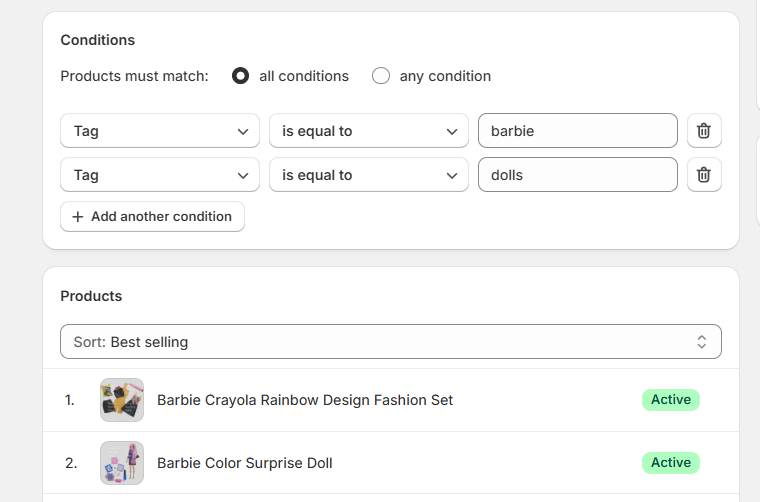
For example, to create a collection of barbie doll products:
- Set first condition: Product tag is equal to "barbie"
- Click "Add another condition"
- Set second condition: Product tag is equal to "dolls"
- Choose "Products must match: all conditions"
Products tagged with both "barbie" and "dolls" automatically appear in this collection.
Smart Collection Limitations to Know About
Smart collections have important constraints that affect their usefulness for filtering:
Single logic mode: You can use "all conditions" (AND) OR "any condition" (OR), but you cannot combine both logic types in a single collection. This limits complex filtering scenarios.
No manual additions: Once you create a smart collection, you cannot manually add products that don't meet the conditions. If you need exceptions, use a manual collection instead.
Update timing: Smart collections don't update instantly. After tagging products, there may be a brief delay before they appear in relevant smart collections.
Collection proliferation: Creating smart collections for every tag combination quickly becomes unmanageable. If you have 10 colors and 10 materials, you'd need 100 collections to cover all combinations.
5,000 product filter limit: When a collection (smart or otherwise) contains more than 5,000 products, the storefront's filter UI is automatically disabled. You lose the ability to show filtering controls to customers on that collection page at all. This is a hardcoded platform limit.
Filters also break around 1,000+ products in some setups: Related to the above — some merchants report that filter functionality becomes unreliable or disappears at the 1,000+ product threshold, depending on theme and store configuration, not just at 5,000.
No sorting control beyond preset options: Smart collections offer only a small set of sort orders (best-selling, newest, price, alphabetical, manual). You cannot define custom sorting logic — for example, you can't sort by a metafield value or a combination of criteria.
No availability filtering — There is no native way to exclude out-of-stock products from the collection view. All products display regardless of inventory status.
Discounts can't be applied natively to smart collections: Certain Shopify features (such as automatic tax exemptions for specific product groups) only work with manual collections. If you need to apply promotions or rules that depend on collection membership, smart collections may not be recognized as a valid target by some native tools.
In short, smart collections work well for simple, tag-based segmentation, but they hit real walls in stores with short product identifiers, metafield-driven data, large catalogs, or complex discount/tax logic.
Method 2:
Setting Up Tag Filters in Shopify Search & Discovery App
This free app creates interactive filters that customers can use directly on collection pages—the kind of faceted search experience that URL-based methods can't provide. Most store owners can start here before considering third-party apps. The Search & Discovery app handles the majority of filtering needs without additional cost.
That being said, it will be outgrown quite quickly.
Quick Note:
Tags vs Metafields - Which Should You Use for Filtering?
Shopify offers another primary way to store filterable product attributes apart from product tags: metafields. Understanding when to use each prevents architectural decisions you'll regret later.
Both work with the Search & Discovery app for filtering. The difference lies in their capabilities, flexibility, and long-term scalability.
Tags are the simpler, no-setup option that works well for single-language stores with basic filtering needs or existing tag infrastructure, and they're included in all Shopify plans at no extra cost. Metafields are the better long-term choice for stores needing multi-language support, structured data types, consistent validated values, or advanced filter features like color swatches.
Installing and Configuring Search & Discovery
The Search & Discovery app is free and available to all Shopify plans. Install it from the Shopify App Store by searching "Search & Discovery" and selecting the official Shopify app.
The app installs on any store regardless of theme. However, the filters you create only display on themes compatible with Shopify's filter architecture. Shopify 2.0 themes support this functionality; older themes may require custom code or updates.
After installing, create a test filter and preview your store. If filters don't appear on collection pages, your theme may need updating, or you may need to add the filter section manually in theme customization.
Creating Tag-Based Filters in the App
Once installed, navigate to Apps > Search & Discovery in your Shopify admin. Click "Filters" in the left sidebar, then "Add filter."
Select "More filters" as the filter source. Shopify displays your existing tags that can become filter options.
This is how you can configure the product tag-based filter:
Filter label: The label customers see (e.g., "Color" instead of showing raw tag values)
Logic: AND or OR options. AND means if the options red, size 8, and leather are all selected, the product has to have all of these tags. OR means the product should have at least one of the tags. For example, if the user selects both red and blue, then the product can be either red or blue.
Values: All of your product tags will be included without exception.
Sort: The “Automatically” option means alphabetical order. The “Manually” is of course a custom arrangement.
Save your filter, and it appears on compatible collection pages immediately. Customers can select filter values to narrow results.
This is how it looks on my test store:
.png)
Search & Discovery Collection Limitations to Know About
Shopify’s native Search & Discovery app is probably where you should start, but what can I say? It has many limitations.
The biggest headache kicks in after you've spent hours meticulously tagging products by material, style, and fit—only to realize that setting up product filters the right way is a whole separate challenge. You open the app expecting to turn those tags into clean, distinct filter dropdowns, only to realize the app doesn't natively support tag-based filtering that way.
Instead of a polished browsing experience, you're stuck with a "one-size-fits-all" logic that fails to categorize your hard work.
Only one tag filter allowed per store — The "Tags" source can only be used once. Once you've created a tag filter, the Tags option is greyed out and can't be selected again. You cannot have two separate tag-based filters (e.g. one for "Color" tags and another for "Material" tags). This is a frequently cited and widely frustrating limitation — the only workaround is to migrate to metafields.
No ability to show only selected tags — When you set a filter source to "Tags," the app displays all product tags in the store, not just the ones you want. Even if you select specific tags during setup, the filter historically shows all tags. The only reliable solution is metafields.
No way to exclude backend-only tags — There is no native mechanism to hide internal/admin tags (e.g. "make-to-order," "$15 surcharge," "wholesale") from appearing as customer-facing filter options. These show up alongside legitimate filter tags. The only workarounds are custom CSS/Liquid to hide specific tag values by name, or switching to metafields entirely.
25 total filters maximum — The entire store is capped at 25 filters combining all types (tags, price, availability, product type, vendor, metafields, etc.). Since only one of those 25 slots can be a tag filter, stores that want multiple dimensions of tag-based filtering (e.g. Color, Material, Season, Style — all as separate filters from tags) are structurally blocked.
No real-time indexing — Tag changes to products are not instantly reflected in filter results. After tagging or re-tagging products, there can be a 24–48 hour delay before the changes appear correctly in filter results. A forced re-index (e.g. making a trivial product edit) can sometimes speed this up, but there's no instant sync.
No visual swatches for tag filters — Tag filters only display as plain text lists. You cannot add color swatches, pattern thumbnails, or image-based visuals to tag filter values. Visual filter support (swatches, images) is only available for metaobject-based metafield filters.
No way to default-hide out-of-stock products — The availability filter exists, but customers must manually select "In stock" to exclude sold-out products. There is no way to configure the filter to show only available products by default. Shoppers land on collection pages seeing unavailable products unless they actively filter them out.
Tag filter only works in the default language — The product tag filter is completely hidden/non-functional for shoppers browsing in any language other than the store's default language. This is an explicit platform limitation. Stores using Translate & Adapt with multilingual setups cannot use tag-based filters for non-default languages at all.
No per-collection filter customization — Filter settings are global. You cannot configure the tag filter to show different tags on different collection pages. If you have a clothing collection and a hardware collection, the same tag filter (with the same tags) appears on both, including irrelevant tags for each context.
100 visible filter values maximum — A tag filter can only display up to 100 values to shoppers on the storefront. If your store has 200 tags, 100 of them simply won't appear as filter options.
1,000 filter groups limit — A filter group can hold a maximum of 200 unique values, and the entire store can have a maximum of 1,000 filter groups across all filter settings.
5,000 unique tag values in the app — In the admin app itself, the tag filter supports up to 5,000 unique tag values total. In large catalogs (e.g. 27,000 tagged products), merchants have reported the app stopping at a certain letter of the alphabet and refusing to display or search for any tags beyond that point.
Method 3: A Filter App Built for Real Tag-Based Filtering
When the native limits throttle your store's usability, Rapid Search provides the advanced capabilities growing Shopify merchants actually need—including proper faceted filtering on Shopify that scales with your catalog.
Rapid Search lets you take back control of your tags. You can easily build distinct, logical filter groups based on your specific tags (e.g., a "Material" filter, a separate "Style" filter), creating a clean, intuitive shopping experience.
Key capabilities that crush native limitations:
- Advanced Tag Logic: Stop the tag dump. Turn your tags into customized, separate filter categories with sophisticated logic options.
- No Filter Ceilings: We don't cap your entire store at 25 configurable options, giving you total freedom to merchandise.
- Unlimited Filter Values: Say goodbye to the 100-value display limit—showcase every attribute your products have to offer.
- Massive Catalog Support: Works seamlessly with collections exceeding 5,000 products where native filters break down entirely.
- Customizable UI: Match your theme's exact look and feel with highly flexible display options and layouts.
- Smart Search Integration: Combines this powerful, tag-friendly filtering with intelligent search functionality, including the ability to search within a collection for faster product discovery.
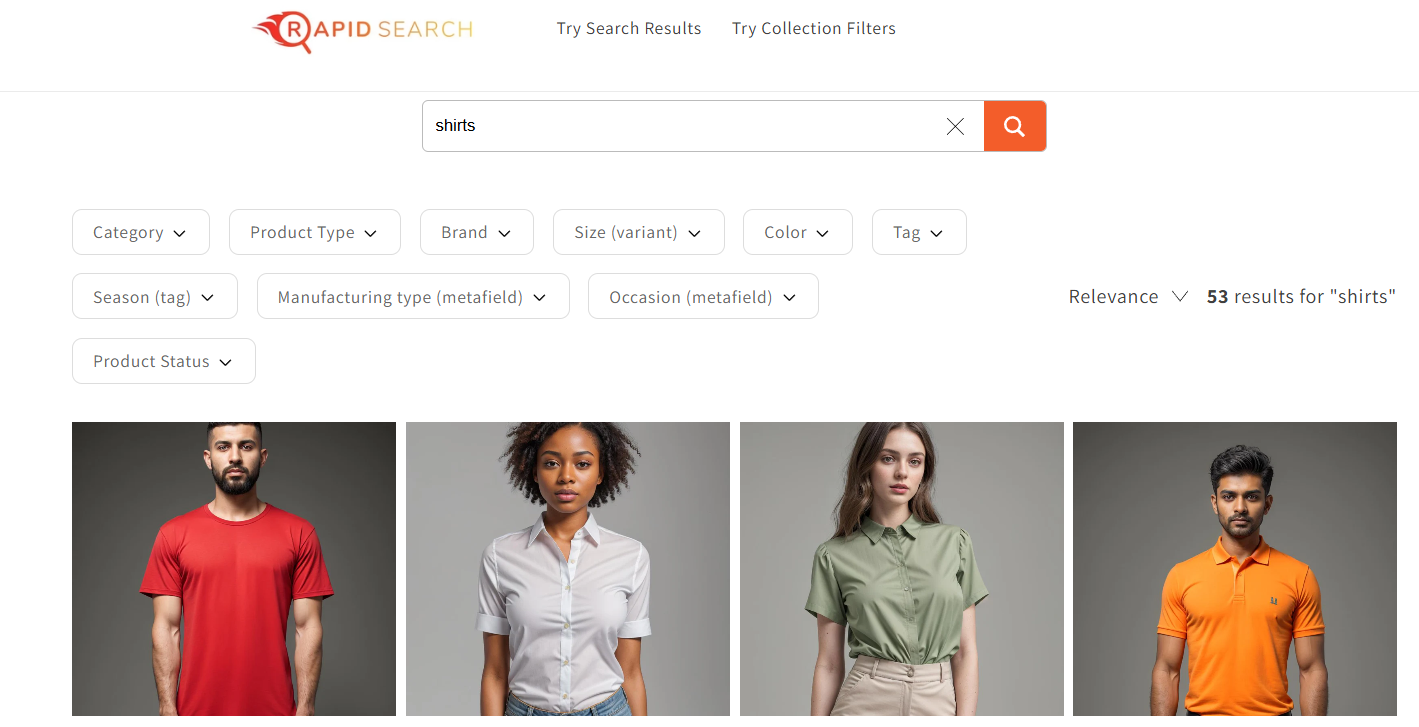
Rapid Search handles the complex filtering scenarios that native tools simply can't. It's built specifically to cure the headaches of merchants who've outgrown Search & Discovery but don't want to pay for unnecessary enterprise features.
If your store has hit the limits of native filtering—large collections, too many filter values, or slow page reloads—Rapid Search removes those barriers.
Method 4:
Custom Tag Filtering with Liquid Code
For developers or if you are feeling adventurous working with themes that don't support native filter functionality, Liquid provides the tools to build custom tag filtering. This approach requires coding knowledge but offers complete control over the filtering experience.
Step 1: Access Your Theme Code
- Go to your Shopify admin
- Navigate to Online Store > Themes
- On your current theme, click "..." > Edit code
Step 2: Find the Right Template File
You need to add this code to your collection template. Look for one of these files under sections (not assets) or templates for older themes:
- For Online Store 2.0 themes (Dawn, Horizon, etc.):
main-collection-product-grid.liquidormain-collection.liquid
- For older themes search for something like:
templates/collection.liquidorsections/collection.liquid
Step 3: Find Where to Insert
Look for a line that says:
Dawn
<div class="collection{% if section.settings.filter_type != 'vertical' %} page-width{% endif %}"
<div class="loading-overlay gradient"></div>
Horizon
{% render 'skip-to-content-link', href: '#ResultsList', text: 'accessibility.skip_to_results_list' %}Step 4: Insert the Code
Insert this code after <div class="loading-overlay gradient"> for Dawn or after </div> or .skip_to_results_list' %} for Horizon:
{% comment %} Custom Tag Filters - TEST {% endcomment %}
{% if collection.all_tags.size > 0 %}
  <style>
    .tag-filters { margin-bottom: 20px; padding: 15px; background: #f5f5f5; border-radius: 8px; }
    .tag-filters h4 { margin-bottom: 10px; }
    .tag-filters ul { list-style: none; padding: 0; display: flex; flex-wrap: wrap; gap: 8px; }
    .tag-filters li a { display: inline-block; padding: 6px 12px; background: #e0e0e0; color: #333; text-decoration: none; border-radius: 4px; }
    .tag-filters li.active a { background: #333; color: #fff; }
  </style>
  <div class="tag-filters">
    <h4>Filter by Tag:</h4>
    <ul>
      {% for tag in collection.all_tags %}
        {% if current_tags contains tag %}
          <li class="active">
            {{ tag | link_to_remove_tag: tag }}
          </li>
        {% else %}
          <li>
            {{ tag | link_to_add_tag: tag }}
          </li>
        {% endif %}
      {% endfor %}
    </ul>
  </div>
{% endif %}
{% comment %} End Custom Tag Filters {% endcomment %}
Install Search & Discovery (Free)
Click save.
Step 5- Check
It should look something like this:
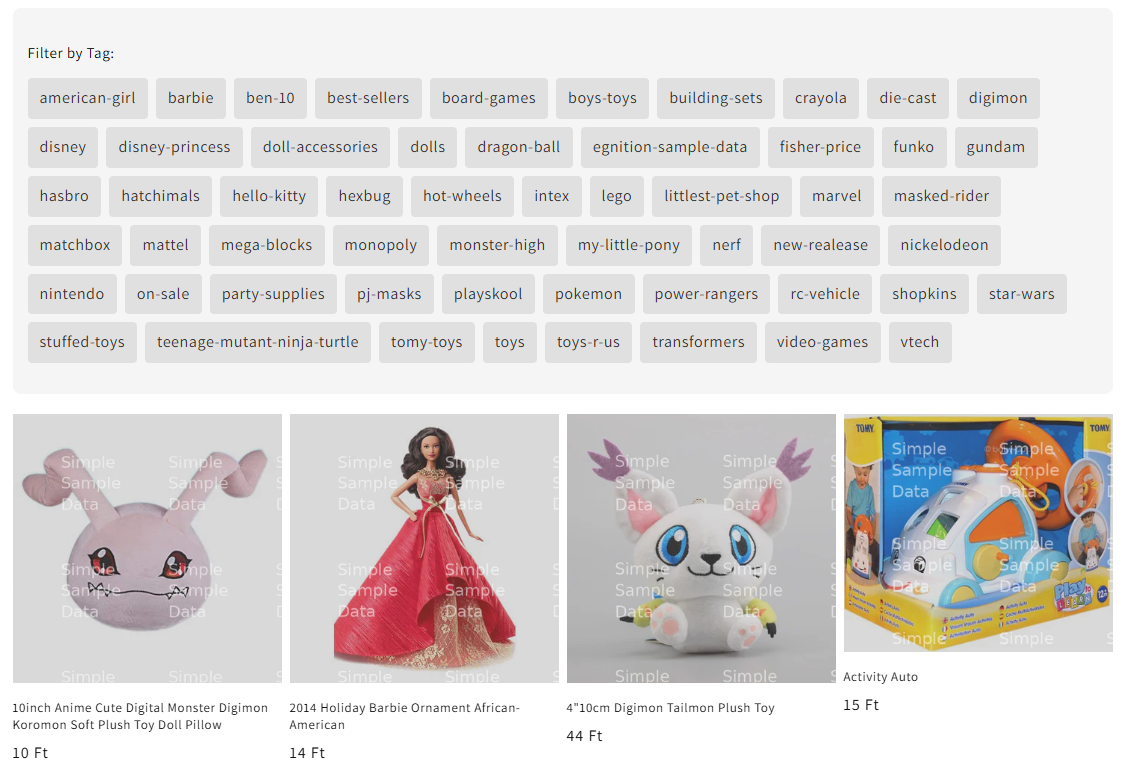
Custom Liquid filtering gives you full control over the code — but that control comes with a long list of things you have to handle yourself. Unlike apps, there's no support team, no automatic updates, and no built-in UX polish. Here's what you're signing up for.
All tags display — you can't cherry-pick — collection.all_tags returns every tag on every product in the collection, with no built-in way to filter the list. Internal admin tags like "wholesale," "restock-pending," or "$12-surcharge" will appear as customer-facing filter options unless you write extra Liquid logic to exclude them by name. Any time you add a new backend tag, you have to update your exclusion list.
AND logic only — no OR filtering — Shopify's native link_to_add_tag and link_to_remove_tag filters stack tags using AND logic. If a customer selects "red" and "leather," they only see products tagged with both. There is no native way to show products tagged with either "red" OR "leather" using Liquid. OR logic requires custom JavaScript.
5,000 product collection ceiling — Just like every other native filtering approach, the collection.all_tags variable only returns tags for the first 5,000 products in a collection. On collections exceeding this limit, your custom filter will silently show an incomplete tag list — with no error, no warning, just missing options.
Theme updates can break your customization — Every time you or your theme developer updates the theme, your injected Liquid code can conflict with new template structure. There's no upgrade path or compatibility layer. You're responsible for maintaining the code indefinitely.
No mobile optimization out of the box — The example code above renders a flat list of tag links. On mobile, that list can become unusably long. Dropdowns, drawers, and collapsible filter panels all need to be coded and styled manually, with full responsive CSS.
Zero performance optimization — Apps like Rapid Search index your catalog in the background and serve filtered results quickly. Liquid tag filtering forces Shopify to evaluate the full collection on every page load. On large catalogs, this contributes to slower page render times.
No availability filtering — There is no native way to exclude out of stock products from the collection view. All products display regardless of inventory status.
No visual filter types — Color swatches, image thumbnails, range sliders for price — none of these are possible with collection.all_tags. It returns strings. Every visual enhancement requires custom JavaScript and CSS on top of the base implementation.
Liquid tag filtering is a good starting point for developers who need a quick proof-of-concept or are working on a small, simple store. For anything production-ready — especially stores with large catalogs, complex filtering needs, or a mobile audience — you'll quickly find yourself rebuilding everything that filter apps already solved.
Conclusion
You now have four proven methods to filter Shopify collections by tag: smart collections for automated groupings, Search & Discovery for interactive customer filtering, Rapid Search for stores that need more power, and Liquid code for custom implementations.
Start with the Search & Discovery app—it's free and handles basic filtering needs. But if you're hitting its limits—collections over 5,000 products, slow page reloads frustrating customers, or too many filter values to display—don't fight the platform. Rapid Search removes those barriers and scales with your store.
If filters aren't appearing, remember the troubleshooting checklist: check indexing status, verify collection size is under 5,000 products, audit tag naming conventions, and confirm theme compatibility.
Bookmark this guide for reference as you implement and refine your filtering strategy. Effective product filtering turns browsing visitors into buyers—and that's worth the setup effort.


.png)
