
.png)
If you've ever typed a SKU into your Shopify store's site search bar and watched the dropdown show zero results, you're not alone. By default, Shopify's predictive search completely ignores SKUs. Customers type an exact part number, see nothing, and assume you don't carry it.
The fix takes five minutes. This guide shows you exactly how to enable SKU search in Shopify's predictive search dropdown, with tested code for Dawn, Horizon, and other popular themes.

Add variants.sku to the fields parameter in your theme's predictive search JavaScript file.
Dawn theme: In assets/predictive-search.js, search for fetch and replace this line:
With this line:
Horizon theme: In assets/predictive-search.js, search for limit_scope (it’s under #getSearchResults) and add this line after resources[limit_scope]:
Result: SKU search now works in the instant search dropdown as customers type.
Why Shopify Predictive Search Ignores SKU fields By Default
Shopify's predictive search API—the endpoint powering the instant dropdown as customers type—only searches four fields by default: title, product_type, variants.title, and vendor. SKU is not included.
This design choice makes sense for typical B2C stores where customers search by product names. But for B2B stores, wholesalers, or any business where customers know their part numbers, the default behavior creates friction. A buyer types "TOY-498" looking for a specific item, sees an empty dropdown, and either gives up or contacts support.
The API itself supports SKU search—Shopify just doesn't enable it by default. Adding variants.sku to the fields parameter unlocks this capability without any API changes or app installations.
Predictive Search vs Full-Page Search: The Key Difference
Understanding how Shopify's two search experiences differ helps explain why you might see inconsistent behavior.
Predictive search (instant dropdown) appears as customers type. It queries the /search/suggest.json endpoint and, by default, does NOT search SKUs. Products won't appear until you make the theme modification covered in this guide.
Full-page search results appear after customers press Enter. This experience already searches SKUs out of the box—no modification needed. However, it uses prefix matching only, which has significant limitations covered later in this guide.
This explains a common frustration: a customer types a SKU, sees nothing in the dropdown, thinks there’s no such product in your store and takes off to check whether the item’s available in another store.
| Search Experience | SKU Searchable by Default? | Modification Required? |
|---|---|---|
| Predictive search (dropdown) | ✖ No | Yes - add variants.sku to fields |
| Full-page results (Enter key) | ✔ Yes | No |
🎯 Quick Decision
If customers complain that SKU search "doesn't work" but products appear after pressing Enter, your issue is predictive search—follow this guide.
If SKUs don't work even after pressing Enter, you may have a different issue (product not published, SKU field empty, etc.).
How to Add SKU to Predictive Search (Step-by-Step)
There are 2 ways to do this. Method 1 involves manual coding — it's free, but more complex to set up and you'll need to update it whenever your theme changes. Also, Method 1 has a couple of limitations that Method 2 solves for you.Method 2 takes under 3 minutes (just install an app), though it's not free unless you're just starting out.
Method 1
The solution is straightforward: locate your theme's predictive search JavaScript file and add variants.sku to the API call's fields parameter. The exact implementation varies by theme.
Accessing the Theme Code Editor
- Go to your Shopify Admin
- Click Online Store → Themes
- Find your active theme and click the three dots (⋯) menu
- Click Edit code
- In the left sidebar, expand the Assets folder
- Look for
predictive-search.js(most themes use this filename)
Theme-Specific Instructions
Dawn Theme (Shopify's Default Theme)
Dawn is Shopify's most popular free theme. The predictive search logic lives in assets/predictive-search.js.
File location: Assets → predictive-search.js
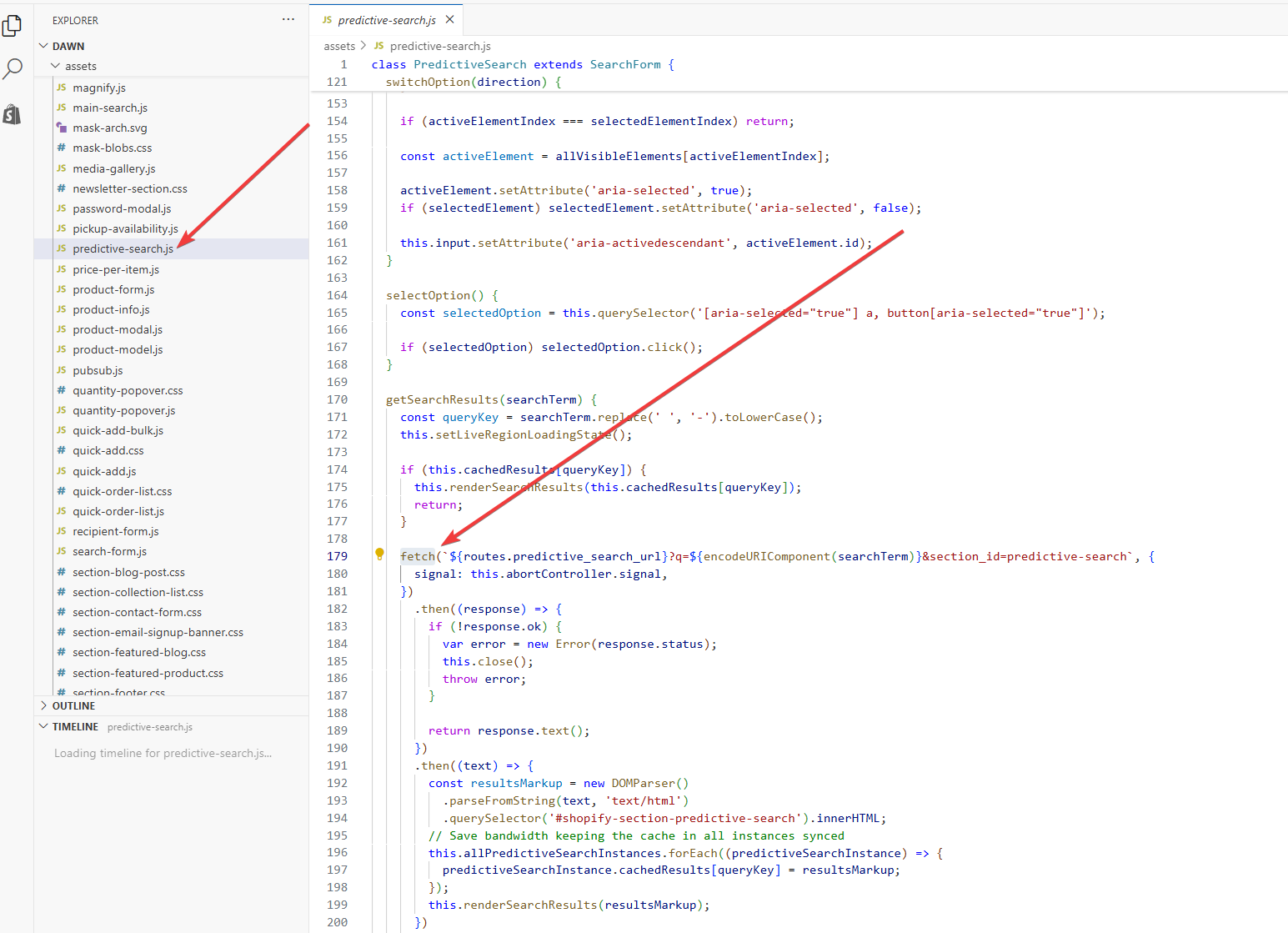
Step 1: Press Ctrl+F (Windows) or Cmd+F (Mac) and search for:
Step 2: Find the fetch line that looks like this:
Step 3: Replace that entire line with:
Step 4: Click Save in the top right corner.
Horizon Theme
Horizon uses a cleaner URL-building approach with searchParams.set(), making the modification simpler.
File location: Assets → predictive-search.js
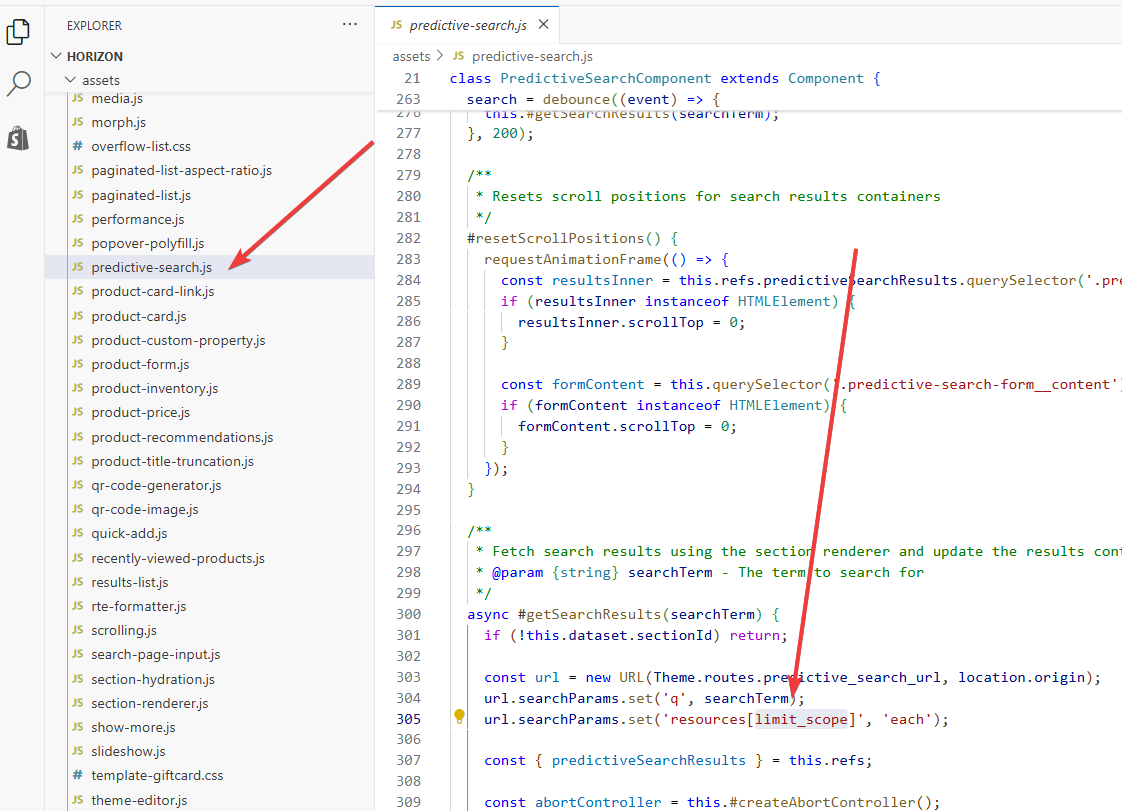
Step 1: Press Ctrl+F (Windows) or Cmd+F (Mac) and search for:
Step 2: Find this section of code:
Step 3: Add one new line immediately after the resources[limit_scope] line:
Step 4: Click Save in the top right corner.
Quick Reference: Dawn vs Horizon
| Theme | File | Action |
|---|---|---|
| Dawn | assets/predictive-search.js | Replace the entire fetch() URL line |
| Horizon | assets/predictive-search.js | Add one new url.searchParams.set() line |
Debut, Brooklyn, and Older Themes
Older Shopify themes may use jQuery or different file structures. Look for:
assets/theme.jsorassets/theme.js.liquidassets/ajaxify.jssnippets/predictive-search.liquid
Search these files for /search/suggest or predictive_search. The modification principle remains the same—add variants.sku to the fields parameter.
.png)
Understanding Shopify's SKU Matching Limitations
After enabling SKU in predictive search, you'll have the same matching capabilities as full-page search. These capabilities come with important limitations.
Prefix Matching Only
Shopify's search uses prefix matching on tokenized segments. This means:
| Search Term | SKU: TOY498 | Result | Why |
|---|---|---|---|
TOY498 | ✔ Found | Exact match | |
TOY | ✔ Found | Prefix of first token | |
TOY4 | ✔ Found | Prefix continuing into second token | |
498 | ✖ Not found | Suffix, not a prefix | |
0Y | ✖ Not found | Mid-string, not a prefix |
How search breaks your product codes apart
Shopify splits SKUs into searchable segments at certain characters:
| Character | Creates Token Boundary? | Example |
|---|---|---|
- (hyphen) | ✔ Yes | BETA-789 → [BETA] [789] |
. (dot) | ✔ Yes | ABC.123 → [ABC] [123] |
/ (slash) | ✔ Yes | ABC/123 → [ABC] [123] |
_ (underscore) | ✖ No | ABC_123 → [ABC_123] single token |
Practical implication: For SKU BETA-789, searching "789" works because the hyphen creates a token boundary. For SKU ABC_123, searching "123" fails because underscores don't tokenize.
Zero Typo Tolerance
Shopify's search has no fuzzy matching whatsoever, and unlike solutions with typo tolerance, a single character mistake returns zero results.:
| Search | SKU: BUBB123 | Result |
|---|---|---|
BUBB123 | ✔ Found | |
BUBB | ✔ Found | |
CUBB123 | ✖ Not found (typo) | |
BUBB132 | ✖ Not found (transposition) | |
BBB123 | ✖ Not found (missing character) |
For B2B stores where warehouse staff type quickly or customers transcribe SKUs from printed catalogs, this limitation creates real friction.
What This Means for Your Store
After implementing the theme modification:
Will work:
- Exact SKU searches
- Searching the beginning of any SKU
- Searching segments after hyphens, dots, or slashes
Won't work:
- Searching from the middle of a SKU
- Searches with typos
- Searching segments after underscores
If these limitations impact your business, consider a dedicated search app like Rapid Search (covered below).
Testing Your SKU Search Implementation
After making the code change, verify it works correctly.
Step-by-Step Testing
- Go to your storefront (not the admin)
- Start typing a known SKU in the search bar. If your store has an always visible search bar, this is even easier to test.
- Watch the dropdown — products with matching SKUs should appear as you type
- Test prefix matching: Type just the first few characters of a SKU
- Test tokenization: If your SKU has hyphens, try searching the segment after the hyphen
- Verify limitations: Confirm that mid-string searches don't work (this is expected)
Common Issues and Fixes
Problem: No results appear in dropdown
- Check: Did you save the file after editing?
- Check: Clear browser cache or use incognito mode
- Check: Is the SKU field actually populated for the product?
- Check: Is the product published and visible?
Problem: JavaScript error in console
- Check: Did you maintain proper JavaScript syntax (commas, quotes)?
- Check: Did you accidentally delete other parts of the code?
Problem: Some SKUs work, others don't
- Check: Verify the non-working SKUs are actually populated in Shopify
- Check: Remember tokenization rules (underscores don't create boundaries)
Verification Checklist
[ ] Exact SKU search returns product in dropdown
[ ] Prefix search (first few characters) returns product
[ ] Hyphenated SKU: segment after hyphen is searchable
[ ] No JavaScript errors in browser console
[ ] Search still works for product titles (didn't break existing functionality)
Method 2
The theme modification enables SKU search in predictive results, but you inherit Shopify's matching limitations. For stores needing more sophisticated search, Rapid Search offers a dramatically better experience without code changes.
Comparing Native Search (Modified) vs Rapid Search
| Capability | Shopify + Theme Mod | Rapid Search |
|---|---|---|
| SKU in predictive search | ✔ Yes (after mod) | ✔ Yes (out of box) |
| Prefix matching | ✔ Yes | ✔ Yes |
| Infix matching (mid-string) | ✖ No | ✔ Yes |
| Suffix matching | ✖ No | ✔ Yes |
| Typo tolerance | ✖ No | ✔ Yes |
| Underscore tokenization | ✖ No | ✔ Yes |
| Shows actual product SKU | ✖ No | ✔ Yes |
| Code changes required | Yes | No |
Real-World Test Results
We tested identical searches on both solutions:
| Search | SKU | Shopify (Modified) | Rapid Search |
|---|---|---|---|
PHA | ALPHA123 | ✖ Nothing | ✔ Found |
123 | ALPHA123 | ✖ Nothing | ✔ Found |
123 | ABC_123 | ✖ Nothing | ✔ Found |
ALPH | ALPHA123 | ✔ Found | ✔ Found |
ETA | BETA-789 | ✖ Nothing | ✔ Found |
APLHA | ALPHA123 | ✖ Nothing (typo) | ✔ Found |
Key Rapid Search Advantages
True instant search. Results appear immediately with no Enter key required—and SKU is included from the start.
Intelligent matching. Mid-string and suffix searches work, going beyond basic keyword lookup into semantic search territory. Searching "PHA" finds "ALPHA123" and "123" finds products ending in those digits.
Typo tolerance. Minor mistakes don't return zero results. "APLHA" still finds "ALPHA."
One-click add to cart. The search dropdown includes quantity selectors and add-to-cart buttons. B2B buyers can search a SKU and add it to cart without visiting the product page.
No coding required. Install from the Shopify App Store, and SKU search works immediately.
When to Choose Each Option
Theme modification is sufficient if:
- Customers primarily search exact SKUs
- Your SKUs are short and simple (less prone to typos)
- You have developer resources for theme maintenance
- Budget is a primary concern
Rapid Search is better if:
- Customers search partial SKUs or make frequent typos
- You run a B2B store with high-volume SKU searches
- You don't have developer resources
- You've received complaints about search not finding products
- Speed and conversion matter more than monthly app cost — and if you want to go deeper, e-commerce search best practices can help you get the most out of whichever solution you choose.
- Good news: If your store has a maximum of 2000 sessions per month and no more than 5000 products it’s completely free
🎯 Try It Yourself
- Install Rapid Search from the Shopify App Store
- SKU search works immediately—no configuration needed
- Test with your actual product SKUs
- Compare results to your current search experience
Time: 5 minutes to fully operational
Why doesn't my SKU appear in Shopify's search dropdown?
How do I enable SKU search in Shopify without an app?
Does Shopify Search & Discovery app add SKU search?
Why does SKU search work after pressing Enter but not in the dropdown?
Can I search by partial SKU in Shopify?
Does Shopify search have typo tolerance for SKUs?
What's the best Shopify app for SKU search?
Will the theme modification break after theme updates?
How do I add barcode search to Shopify?
Why do underscored SKUs not search properly?
Conclusion
Enabling SKU search in Shopify's predictive search dropdown is a five-minute fix that removes a significant friction point for customers who search by part numbers. The modification—adding variants.sku to your theme's search API call—works across Dawn, Horizon, and other themes with minor variations.
After implementation, remember the limitations: prefix matching only, no typo tolerance, and tokenization that ignores underscores. For many stores, these constraints are acceptable. For B2B operations where SKU search is critical, Rapid Search delivers a meaningfully better experience with infix matching, typo tolerance, and zero code changes.
The code snippets in this guide have been tested against current theme versions. Copy them with confidence, and your customers will find products by SKU the moment they start typing.

![How to Filter Shopify Collections by Tag: 4 Methods [2026 Guide]](https://cdn.prod.website-files.com/633a8b3361c84b4d80a64dd6/6a50aba375bb6104944fcde3_69d93a420c6647055ee84c87_unnamed%2520(3).jpeg)
.png)
